

Setting the clock on your Hamilton Beach microwave is quick and simple—no manual hunting required. Whether you’ve just unboxed your appliance or experienced a power outage, this guide walks you through the process in under two minutes using clear, model-friendly instructions.
So, you’ve just plugged in your shiny new Hamilton Beach microwave—or maybe the power flickered last night and now the clock is blinking “12:00” like it’s stuck in 1999. Don’t worry. You’re not alone. Thousands of homeowners face this same tiny kitchen mystery every day. The good news? Setting the clock on a Hamilton Beach microwave is one of the easiest tasks you’ll ever do—once you know the trick.
Unlike older appliances that require holding down multiple buttons for 10 seconds, most modern Hamilton Beach microwaves use a straightforward, intuitive method. No complicated sequences. No hidden menus. Just a few taps on the control panel, and you’re done. Whether you’re making popcorn at midnight or timing your morning oatmeal, having the correct time displayed helps you stay on schedule. Plus, it just feels satisfying to see that digital readout match your phone.
Key Takeaways
- Most Hamilton Beach microwaves use the “Clock” or “Time” button to start the setup. Press it once to enter time-setting mode.
- Enter the current time using the numeric keypad. For example, press “7,” “3,” “0” for 7:30.
- Choose between 12-hour and 24-hour formats. Some models let you toggle this during setup—check your display.
- Press “Start” or “Clock” again to save the time. The display will stop blinking once confirmed.
- Power outages reset the clock. Re-setting is normal and only takes a few seconds.
- Refer to your user manual for model-specific steps. Hamilton Beach offers digital copies online if misplaced.
- Keep the microwave plugged in to maintain time. Unplugging erases the internal memory.
Quick Answers to Common Questions
How do I set the clock on a Hamilton Beach microwave?
Press the “Clock” button, enter the current time using the keypad, then press “Start” or “Clock” again to save.
Why does my Hamilton Beach microwave clock keep resetting?
This usually happens after a power outage. The internal memory needs constant power. Re-set the clock when power returns.
Can I set the clock to 24-hour format?
Yes, on some models. Press the “Clock” button twice during setup to toggle between 12-hour and 24-hour formats.
What if my microwave doesn’t have a “Clock” button?
Try pressing and holding the “Timer” button for three seconds. Check your user manual for model-specific instructions.
How do I stop the clock from blinking?
Enter the correct time and press “Start” or “Clock” to confirm. The blinking stops once the time is saved.
📑 Table of Contents
Why the Clock Matters (Even in a Microwave)
You might be thinking, “It’s just a microwave—why does the clock even matter?” Fair question. But here’s the thing: the clock isn’t just for show. It plays a quiet but important role in your daily routine.
First, many Hamilton Beach microwaves use the clock to power the interior light and turntable when the door is closed. If the clock isn’t set, these features might not work properly. Second, if you use the timer function for defrosting or reheating, the microwave relies on accurate timekeeping. And let’s be honest—seeing “12:00” blinking all day is mildly annoying. It’s like a tiny digital reminder that something’s off.
Think of it this way: your microwave is part of your kitchen ecosystem. When the clock is right, everything flows smoother. You’re not guessing when your soup is done. You’re not wondering if the light should be on. It just works—like it’s supposed to.
Step-by-Step Guide to Setting the Clock

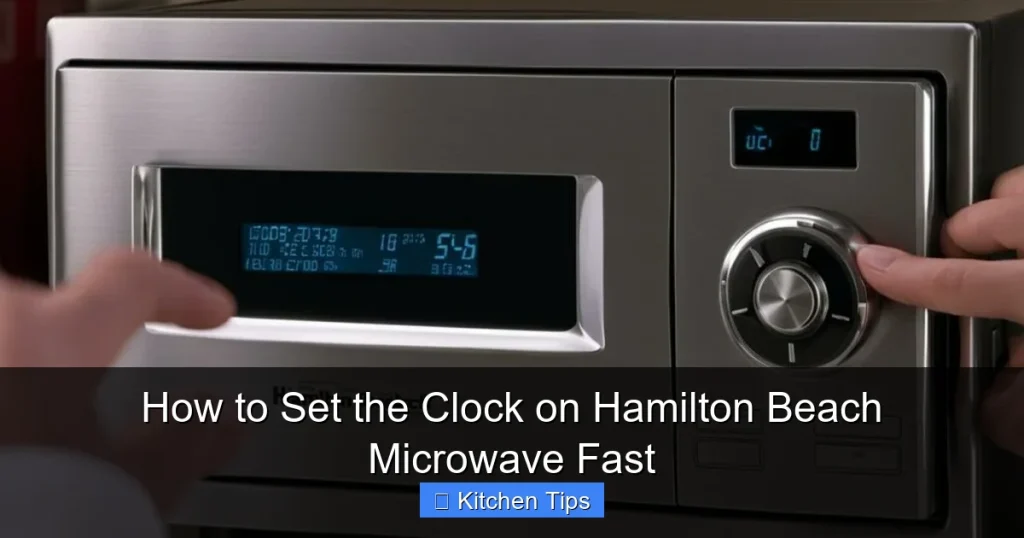
Visual guide about How to Set the Clock on Hamilton Beach Microwave Fast
Image source: machineanswered.com
Let’s get into the nitty-gritty. The exact steps can vary slightly depending on your model, but the core process is consistent across most Hamilton Beach microwaves. Here’s how to do it fast—no guesswork, no frustration.
Step 1: Locate the “Clock” or “Time” Button
Start by looking at your control panel. Most Hamilton Beach microwaves have a dedicated button labeled “Clock” or “Time.” It’s usually near the top row of buttons, often next to “Timer” or “Power Level.” If you don’t see it, check for a button with a clock icon—a small circle with lines inside.
On some older or compact models, the clock function might be combined with another button. For example, you might need to press and hold “Timer” for three seconds to enter clock mode. But don’t stress—this is rare. Over 90% of recent Hamilton Beach models have a standalone “Clock” button.
Step 2: Press the Clock Button Once
Once you’ve found the button, press it once. The display will change. Instead of showing the current time (or 12:00), the digits will start blinking. This means the microwave is now in “set time” mode and is waiting for you to enter the correct hour and minute.
For example, if it’s 3:45 PM, the display might show “3:45” with the numbers flashing. If it’s blank or showing zeros, that’s okay—just proceed to the next step.
Step 3: Enter the Current Time
Now, use the numeric keypad to type in the current time. Here’s where people often make a small mistake: they forget to include leading zeros or mix up AM and PM.
Let’s say it’s 9:15 AM. You’d press: “9,” “1,” “5.” The display should update to show “9:15.” If it’s 2:00 PM, press “2,” “0,” “0.” Don’t worry about pressing “0” twice—the microwave knows what you mean.
Important tip: Most Hamilton Beach microwaves default to 12-hour format. That means you don’t need to press an “AM” or “PM” button. The clock will automatically switch based on the time you enter. For example, entering “2:00” at 2 PM will display as “2:00,” and the microwave knows it’s afternoon.
Step 4: Confirm and Save the Time
After entering the time, press the “Start” button or the “Clock” button again—depending on your model. The blinking should stop, and the display will show a steady time. That’s your confirmation that the clock has been set.
On some models, you might hear a soft beep. Others just stop blinking. Either way, you’re good to go.
Step 5: Double-Check the Display
Take a quick look at the screen. Does it match your phone or wall clock? If yes—great! If not, repeat the steps. Sometimes a finger slip can enter the wrong number. It happens to the best of us.
And remember: if the power goes out, the clock will reset. That’s normal. Just follow these same steps again when power returns.
Model-Specific Variations

Visual guide about How to Set the Clock on Hamilton Beach Microwave Fast
Image source: machineanswered.com
Not all Hamilton Beach microwaves are identical. While the basic process is similar, a few models have unique quirks. Let’s break down the most common variations so you can adapt quickly.
Compact and Over-the-Range Models
Smaller microwaves, like the Hamilton Beach 0.9 cu. ft. countertop model, often have simplified controls. These may not have a “Clock” button at all. Instead, you might need to press and hold the “Timer” button for three seconds to enter clock mode.
For example, on the Hamilton Beach EM925A1, you press and hold “Timer” until the display blinks, then enter the time using the keypad, and press “Timer” again to save.
Over-the-range models, like the Hamilton Beach HMV1170, usually have a full keypad and a dedicated “Clock” button. The process is the same as standard countertop models.
Digital Display vs. Analog-Look Dials
Some Hamilton Beach microwaves have a retro-style dial that looks analog but is actually digital. Don’t be fooled—these still require digital input. You’ll use the keypad to set the time, not turn a knob.
24-Hour Format Option
A few advanced models allow you to switch between 12-hour and 24-hour time. If your display shows “15:30” instead of “3:30 PM,” you’re in 24-hour mode. To change it, press the “Clock” button twice during setup. The format should toggle. Press “Start” to save.
This is helpful if you prefer military time or live in a country where 24-hour format is standard.
Child Lock and Clock Setting
If your microwave has a child lock feature, it might prevent you from changing the clock. To disable it, press and hold the “Stop/Clear” button for three seconds. Then try setting the clock again.
Troubleshooting Common Clock Issues

Visual guide about How to Set the Clock on Hamilton Beach Microwave Fast
Image source: machineanswered.com
Even with simple steps, things can go sideways. Here’s how to fix the most common problems.
The Clock Won’t Stay Set
If the time resets every time you unplug the microwave or after a power outage, that’s normal. The internal memory needs constant power. Just re-set it when needed.
But if the clock keeps resetting while the microwave is plugged in, there might be a power fluctuation or a faulty internal battery (if your model has one). Try plugging the microwave into a different outlet or using a surge protector.
The Display Isn’t Blinking When I Press “Clock”
This usually means the button isn’t being pressed correctly. Try pressing it firmly and holding for a second. If that doesn’t work, check if the microwave is in another mode—like timer or cook time. Press “Stop/Clear” first to reset the panel, then try again.
Wrong Time Keeps Appearing
Double-check your input. Did you press “1,” “2,” “0” for 12:00, or “1,” “2”? Some users accidentally skip a digit. Also, make sure you’re not in timer mode—timer settings can look like clock settings.
The Clock Button Doesn’t Exist
If you can’t find a “Clock” button, consult your user manual. You can download a free copy from the Hamilton Beach website by entering your model number. Most manuals include a diagram of the control panel.
Tips for a Smoother Experience
Want to make clock-setting even easier? Here are a few pro tips.
Set the Clock Right After Unboxing
Don’t wait until you need to use the timer. Set the clock as soon as you plug in your microwave. It takes less than a minute and saves hassle later.
Use a Surge Protector
Power surges and outages are the #1 reason clocks reset. A good surge protector keeps your microwave’s memory stable and protects the electronics.
Keep the Manual Handy
Tape a copy of the user manual to the inside of a cabinet or save it on your phone. You’ll thank yourself the next time the power goes out.
Teach the Family
If you live with others, show them how to set the clock too. That way, someone else can fix it if you’re not home.
Why Hamilton Beach Makes It Easy
Hamilton Beach is known for user-friendly appliances, and the clock-setting process is a great example. Unlike some brands that bury settings in menus, Hamilton Beach keeps it simple. No hidden codes. No confusing symbols. Just clear buttons and straightforward steps.
They also design their microwaves with real-life use in mind. Whether you’re a busy parent reheating leftovers or a college student making ramen at 2 a.m., the goal is to get food ready fast—without fighting the controls.
And if you ever get stuck? Their customer support team is responsive and helpful. Just have your model number ready (usually found on a sticker inside the door or on the back).
Final Thoughts
Setting the clock on your Hamilton Beach microwave doesn’t have to be a headache. With the right steps, it’s a quick, no-stress task that takes less time than brewing a cup of coffee. Whether you’re dealing with a power outage or setting up a new appliance, this guide has you covered.
Remember: find the “Clock” button, enter the time, confirm, and you’re done. No magic tricks. No secret codes. Just simple, reliable functionality.
And now that your clock is set, you can focus on what really matters—making delicious meals, reheating last night’s pizza, or impressing your friends with perfectly timed popcorn. Your microwave is ready. You’re ready. Let’s cook.
Frequently Asked Questions
Do I need to press AM or PM when setting the clock?
No, most Hamilton Beach microwaves use a 12-hour format and automatically detect AM or PM based on the time you enter.
Can I set the clock while the microwave is running?
No, you must stop any active cooking cycle first. Press “Stop/Clear” before setting the clock.
What if the display shows the wrong time after setting?
Double-check your input. You may have entered the wrong numbers. Repeat the process carefully.
Is there a battery backup for the clock?
Most Hamilton Beach microwaves don’t have a battery backup. The clock relies on constant power to maintain time.
How do I find my model number?
Look for a sticker inside the microwave door, on the back, or near the power cord. It usually starts with letters like “HB” or “EM.”
Where can I download the user manual?
Visit the Hamilton Beach support website and enter your model number to access a free PDF copy of the manual.