
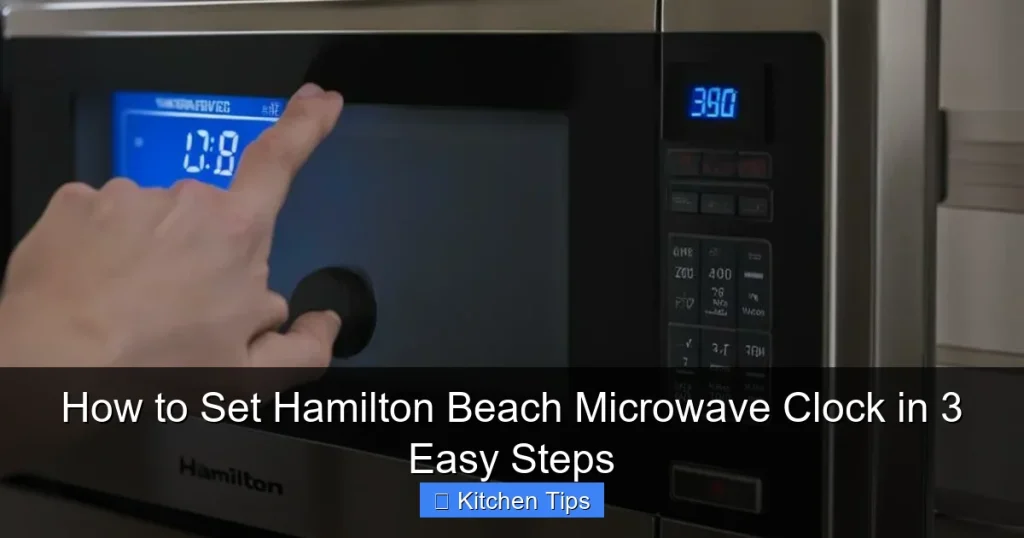

Setting the clock on your Hamilton Beach microwave doesn’t have to be confusing. With just a few button presses, you can have the correct time displayed in minutes. This guide walks you through the process step by step—no manual required.
Key Takeaways
- Locate the Clock Button: Most Hamilton Beach microwaves have a dedicated “Clock” or “Time” button, usually on the control panel.
- Press and Hold to Enter Set Mode: Press and hold the Clock button for 2–3 seconds until the display blinks.
- Enter the Correct Time: Use the number pad to input the current time in 12-hour format, including AM/PM if required.
- Confirm the Setting: Press the Clock or Start button again to save the time and exit set mode.
- Check for Power Interruptions: If the clock resets after a power outage, simply repeat the steps to restore the correct time.
- Use 12-Hour Format: Hamilton Beach microwaves typically use a 12-hour clock, so remember to set AM or PM correctly.
- Keep the Manual Handy: If your model varies, refer to the user manual for model-specific instructions.
Quick Answers to Common Questions
How do I set the clock on a Hamilton Beach microwave?
Press and hold the Clock button for 2–3 seconds until the display blinks, enter the current time using the number pad, then press Clock or Start to save.
Why does my Hamilton Beach microwave clock keep resetting?
The clock resets when the microwave loses power, such as during an outage or if unplugged. Simply re-set the clock after power is restored.
Does the Hamilton Beach microwave use 12-hour or 24-hour time?
Most models use a 12-hour format. You may need to set AM or PM depending on your model.
What if there’s no Clock button on my microwave?
Some models use the Timer or Stop/Clear button to access clock settings. Check your manual for model-specific instructions.
Can I set the clock while the microwave is running?
No, you should stop any active cooking cycle before setting the clock. Press Stop/Clear first, then proceed with the clock setup.
📑 Table of Contents
Why Setting Your Microwave Clock Matters
You might think the clock on your microwave is just a small detail—something that doesn’t really affect how you cook or reheat your meals. But let’s be honest: a properly set microwave clock is more useful than you’d expect. It helps you time your cooking accurately, keeps your kitchen routines on track, and even reminds you when it’s time to start dinner. Plus, if you use the timer or delay start features, the clock needs to be correct for those functions to work properly.
Hamilton Beach microwaves are known for their user-friendly design, durability, and reliable performance. Whether you’re reheating leftovers, defrosting frozen food, or making popcorn, these microwaves get the job done efficiently. But one thing that often trips people up—even experienced cooks—is setting the clock. It seems simple, yet many users struggle because the process isn’t always intuitive. That’s why we’ve created this step-by-step guide to help you set your Hamilton Beach microwave clock quickly and correctly.
What You’ll Need to Get Started
Before we dive into the steps, let’s make sure you have everything you need. The good news? You probably already do. All you need is your Hamilton Beach microwave, access to the control panel, and about two minutes of your time. No tools, no apps, no complicated setups.
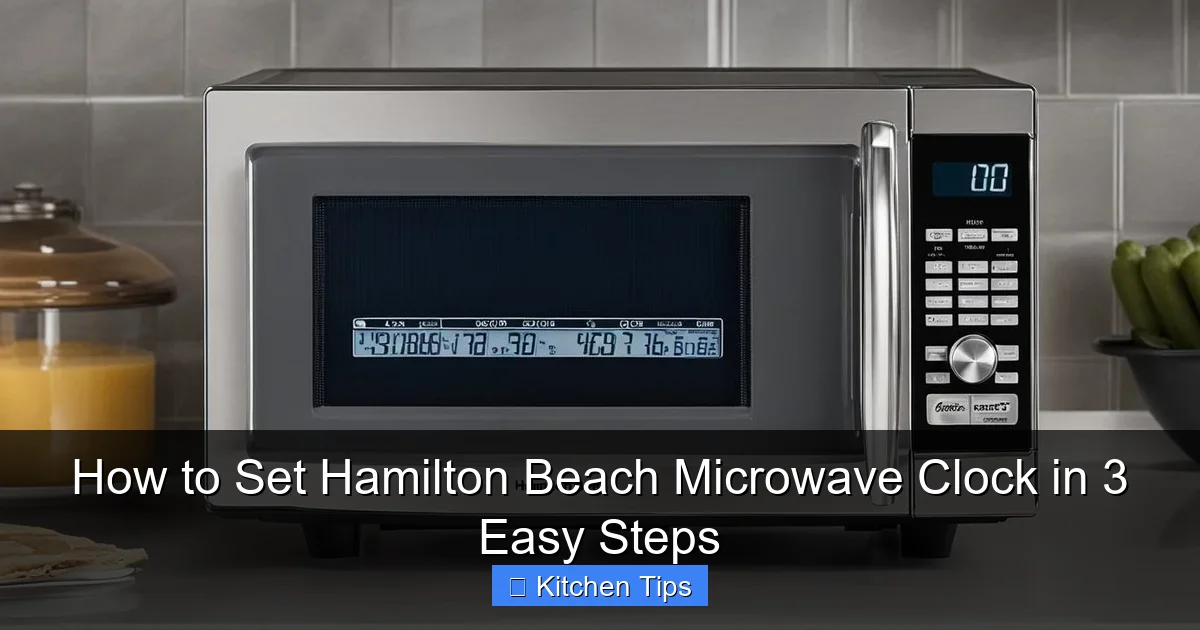
Visual guide about How to Set Hamilton Beach Microwave Clock in 3 Easy Steps
Image source: machineanswered.com
Check Your Microwave Model
Hamilton Beach makes a wide range of microwaves—countertop models, over-the-range units, and compact versions for small spaces. While the basic clock-setting process is similar across most models, there can be slight variations. If you’re unsure about your model number, check the label inside the door or on the back of the unit. This can help if you need to look up specific instructions later.
Ensure Power Is Connected
Your microwave must be plugged in and receiving power for the clock to function. If the display is blank, check the power cord and outlet. Sometimes, a tripped circuit breaker or a loose plug can cause the microwave to lose power, which resets the clock. Once power is restored, you’ll need to reset the time.
Gather a Watch or Phone
To set the clock accurately, you’ll need to know the current time. Use your phone, a wall clock, or a wristwatch to check the exact time before starting. This ensures your microwave clock stays in sync with the rest of your home.
Step-by-Step Guide: How to Set Hamilton Beach Microwave Clock
Now that you’re prepared, let’s walk through the process. Setting the clock on your Hamilton Beach microwave is easier than you think—just follow these three simple steps. We’ll break each one down so you can do it confidently, even if you’ve never done it before.
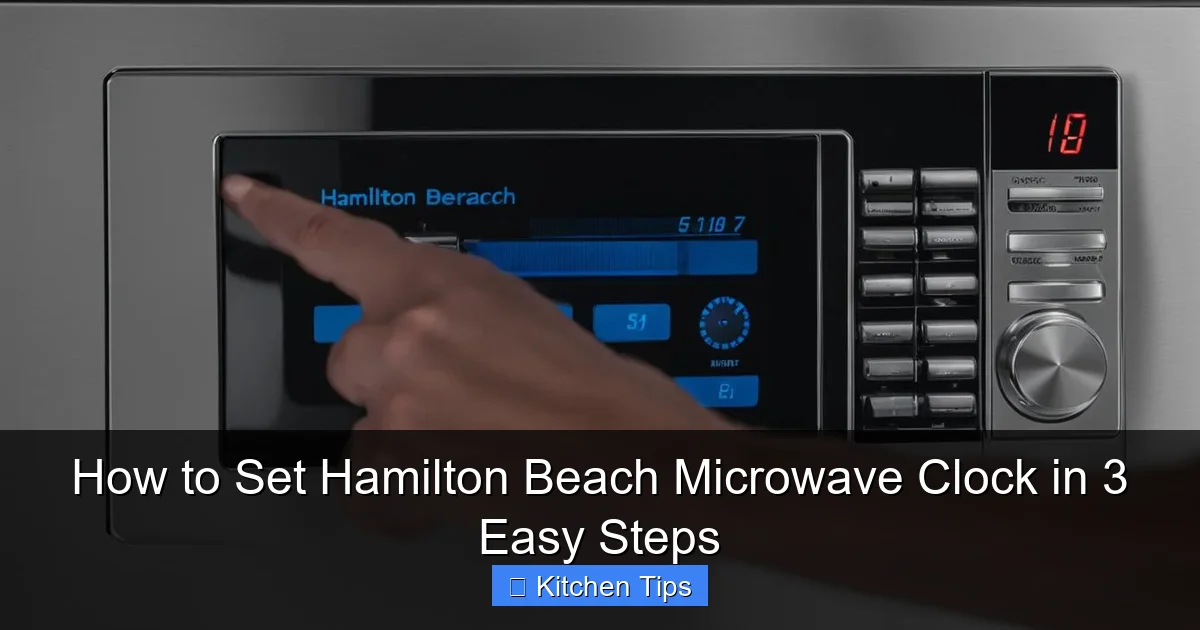
Visual guide about How to Set Hamilton Beach Microwave Clock in 3 Easy Steps
Image source: machineanswered.com
Step 1: Locate the Clock Button
The first step is finding the right button. On most Hamilton Beach microwaves, there’s a button labeled “Clock” or “Time” on the control panel. It’s usually located near the top or center of the keypad, separate from the cooking functions like “Start,” “Stop,” or “Power Level.”
If you don’t see a “Clock” button, don’t panic. Some models use a different method. For example, older or compact models might require you to press and hold the “Timer” or “Stop/Clear” button to access the clock setting mode. In rare cases, the clock is set through a combination of buttons. When in doubt, check your user manual or look for a model number online.
Pro Tip: If your microwave has a digital display with a clock that’s already showing (even if it’s wrong), that’s a good sign the clock function is active. If the display is blank or shows “12:00” flashing, it likely means the clock needs to be set after a power interruption.
Step 2: Enter Clock Setting Mode
Once you’ve found the Clock button, press and hold it for about 2 to 3 seconds. You’ll know you’ve done it right when the display changes—usually, the time will start blinking or the numbers will flash. This blinking indicates that the microwave is now in “clock setting mode” and is ready to accept your input.
Don’t release the button too soon. If you press it briefly and nothing happens, try holding it longer. Some models require a firm press and a steady hold. If the display doesn’t blink, wait a few seconds and try again. Sometimes, the microwave needs a moment to register the command.
Example: Let’s say it’s 3:45 PM. You press and hold the Clock button. After two seconds, the display shows “3:45” with the numbers flashing. That means you’re in the right mode and can now enter the correct time.
Step 3: Enter the Correct Time
Now comes the fun part—typing in the time. Use the number pad on your microwave to enter the current hour and minutes. Most Hamilton Beach microwaves use a 12-hour format, so you’ll need to pay attention to whether it’s AM or PM.
Here’s how to do it:
- Enter the hour first (e.g., “3” for 3 o’clock).
- Then enter the minutes (e.g., “45” for 45 minutes).
- If your model requires it, press an “AM” or “PM” button after entering the time. Not all models have this—some automatically detect based on the time entered.
For example, to set 7:20 AM, you’d press: 7 → 2 → 0. The display should show “7:20” and continue blinking.
Important Note: If you make a mistake, don’t worry. Most microwaves let you re-enter the time as long as the display is still blinking. Just press the numbers again. If the display stops blinking, press and hold the Clock button once more to re-enter setting mode.
Step 4: Save and Exit
Once you’ve entered the correct time, you need to save it. To do this, press the “Clock” button again briefly—or, on some models, press the “Start” button. This confirms your entry and exits the setting mode.
The display should stop blinking and show the steady time. If it continues to flash or resets to “12:00,” you may need to repeat the process. Make sure you’re pressing the correct button to save. On some models, pressing “Stop/Clear” will cancel the setting instead of saving it.
Pro Tip: After setting the clock, wait a minute and check that the time is correct and not changing. If it starts drifting or resets later, there may be a power issue or a faulty internal clock mechanism.
Troubleshooting Common Clock Issues
Even with clear instructions, things don’t always go smoothly. Here are some common problems people face when setting their Hamilton Beach microwave clock—and how to fix them.
Visual guide about How to Set Hamilton Beach Microwave Clock in 3 Easy Steps
Image source: machineanswered.com
The Clock Won’t Stay Set
If your microwave clock keeps resetting to “12:00” or losing time, it’s likely due to a power interruption. This happens when the microwave is unplugged, the circuit breaker trips, or there’s a brief power outage. The internal clock relies on continuous power to keep time, so any disruption resets it.
Solution: Simply repeat the clock-setting steps after power is restored. To prevent future issues, consider plugging your microwave into a surge protector or a battery-backed power strip.
The Display Isn’t Blinking
If you press and hold the Clock button but the display doesn’t blink, you might not be holding it long enough, or the button could be faulty. Some models require a very specific press duration.
Solution: Try pressing and holding the button for a full 3–5 seconds. If that doesn’t work, check if the button is physically damaged or unresponsive. In rare cases, the control panel may need servicing.
Wrong Time Format (24-Hour vs. 12-Hour)
Hamilton Beach microwaves typically use a 12-hour format, but if your display shows “15:45” instead of “3:45 PM,” you may have accidentally enabled a 24-hour mode (if supported).
Solution: Check your user manual to see if your model supports 24-hour time. If it does, there may be a way to switch back to 12-hour format, often by pressing a combination of buttons. If not, the microwave likely doesn’t support 24-hour time, and the display should automatically convert.
Buttons Are Unresponsive
Sometimes, the control panel becomes unresponsive due to dirt, moisture, or wear. This can make it hard to press the Clock button effectively.
Solution: Turn off the microwave and unplug it. Clean the control panel gently with a damp cloth and let it dry completely. Avoid using harsh chemicals. If the buttons still don’t work, contact Hamilton Beach customer support.
Tips for Maintaining Your Microwave Clock
Once your clock is set, you’ll want to keep it accurate and functional. Here are a few tips to help you maintain your Hamilton Beach microwave clock over time.
Keep the Microwave Plugged In
To prevent the clock from resetting, avoid unplugging your microwave unless necessary. If you need to move it or clean behind it, try to do so quickly and plug it back in right away.
Use a Surge Protector
Power surges and outages are common causes of clock resets. Using a surge protector can help stabilize the power supply and protect your microwave’s internal electronics.
Check the Time Weekly
Even if your clock doesn’t reset, it’s a good idea to check it once a week. Over time, some microwaves may drift slightly due to internal timing mechanisms. A quick glance ensures it stays accurate.
Update After Daylight Saving Time
Don’t forget to adjust your microwave clock when daylight saving time begins or ends. It’s easy to overlook, but keeping your kitchen clocks in sync helps with meal planning and timing.
When to Consult the Manual or Support
While most Hamilton Beach microwaves follow a similar clock-setting process, there are exceptions. If your model has a unique interface—such as a touchscreen, voice control, or a different button layout—the steps may vary.
If you’ve tried the steps above and still can’t set the clock, it’s time to consult your user manual. You can usually find a digital copy on the Hamilton Beach website by searching for your model number. Alternatively, contact Hamilton Beach customer support for personalized assistance. They can walk you through model-specific instructions or help diagnose any technical issues.
Final Thoughts
Setting the clock on your Hamilton Beach microwave is a small task with a big impact. It takes just a few minutes, but it ensures your microwave works the way it’s supposed to—helping you cook, reheat, and time your meals with confidence. Whether you’re a busy parent, a college student, or someone who just loves a well-organized kitchen, a properly set clock makes daily life a little easier.
Remember, the process is simple: find the Clock button, press and hold to enter setting mode, enter the correct time, and save it. With this guide, you’ll never have to guess the time on your microwave again. So go ahead—give it a try today. Your future self will thank you when dinner is perfectly timed and your popcorn isn’t half-burnt.
Frequently Asked Questions
How long do I need to hold the Clock button?
Hold the Clock button for 2 to 3 seconds until the display starts blinking. This indicates the microwave is in clock-setting mode.
What if I enter the wrong time?
If the display is still blinking, simply re-enter the correct time using the number pad. If it stops blinking, press and hold the Clock button again to restart the process.
Why is my microwave showing “12:00” flashing?
A flashing “12:00” usually means the clock needs to be set after a power interruption. Follow the clock-setting steps to restore the correct time.
Can I set the clock using the timer function?
No, the timer is for cooking durations, not for setting the current time. Use the dedicated Clock button or method for time setting.
Do all Hamilton Beach microwaves have the same clock-setting process?
Most follow a similar process, but some models may vary. Always check your user manual if you’re unsure.
What should I do if the clock still won’t set?
Ensure the microwave is plugged in and the buttons are clean and responsive. If problems persist, consult the manual or contact Hamilton Beach support.